COMP5808 COMP4900 2026F: Openstack Instructions: Difference between revisions
Lianyingzhao (talk | contribs) mNo edit summary |
Lianyingzhao (talk | contribs) mNo edit summary |
||
| Line 9: | Line 9: | ||
#;[[File:select-project-f26.jpg|310px]] | #;[[File:select-project-f26.jpg|310px]] | ||
# Make a choice for necessary items according to the screenshots attached. | # Make a choice for necessary items according to the screenshots attached. | ||
#;[[File:boot-source.jpg|300px]] [[File:select-image- | #;[[File:boot-source.jpg|300px]] [[File:select-image-f26.jpg|580px]] | ||
#; Flavor | #; Flavor | ||
#;[[File:select-flavor-f24.jpg|580px]] | #;[[File:select-flavor-f24.jpg|580px]] | ||
Revision as of 02:25, 26 September 2026
You can create a VM instance on the SCS openstack cluster for the assignments, by doing the following:
Obvious steps are skipped. You can always reach out to the TA or the instructor for any technical questions.
- Connect to Carleton's VPN (if not on campus).
- Log in to https://openstack-stein.scs.carleton.ca/
- Most of you would need to refresh your SCS account to have the right entitlements for our course (or you may not be able to log in or not listed in the COMP4900K-F26 project): https://newacct.scs.carleton.ca/scs_authentication/newacct-policy-form.php
- Switch to the COMP4900K-F26 project (top-left corner), and launch an instance (button on the right).
- Make a choice for necessary items according to the screenshots attached.
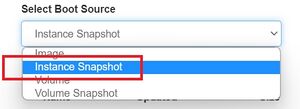

- Flavor

- You must add "ping-ssh-egress" to the security groups, or you'll not be able to ping/ssh to your instance.
- Security groups

- Assign a floating IP.
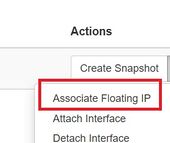
- NEVER attempt to create a snapshot
- Then the new IP address (134.117.XXX.XXX) to the right of 192.168.XXX.XXX will be the one (floating IP) you will use to connect to your instance.
- Note down your floating IP and your instance name for subsequent uses for the rest of the term.
- Log in to your instance with username "student" and password "student" (you will be prompted to change your password right away).


